Showing posts with label guidesforall. Show all posts

Wednesday, March 26, 2014

Basic Java Tutorial For Beginners

Hello guys,

From today on-wards , i will be posting java tutorials on this blog. I will start with the real basics , kind of like a beginners tutorial, so that even the people who actually does not know java , can start learning.

So before we start , i suggest you to do a small search up on Google about the history of java technology.
Java is a "WORA" language, which means, "Write Once, Run Anywhere".
In other words, if you write a java program in Windows platform, you can run the same program in another platform (i.e:- Linux) without changing any part of the code.

Alright now before we get started , you should have an IDE installed in your machine to starting coding.
If you don't have an IDE , go to this  link to download Net beans IDE. 
Once you have the IDE , you have to download and install the "java run time environment" , which creates you the environment to program in java. To download "java run time environment", go to this link.

So lets get Started :-

Step 1 :- Launch Netbeans IDE.

Step 2:-  Click on File -> New Project -> Categories -> Java Application

Step 3:- Give a project name and a project location (Location where you want to save your program)

Step 4:- Untick "Create Main Class" and click "Finish"

Step 5:- Now on your projects tab (left upper corner), right click on the project which you have just created.

Step 6:- Click New -> "Java Class" -> Click Next -> Give any class name you like (But i suggest you to name it as Main for now, since my tutorial class will be called "Main") and Click Finish

You have just created a java class and now you can start coding.

Below is a basic java code,which displays a message called "Hello World".
Type in the below code just the way it is, in to the class you made and then press "F6" to compile and run the code.

Example Code:-


If everything goes well, you should be able to see the out.

Below is an example output:-


That's it , you have made your first java program, CONGRATS.
Well this is the most basic java code, next time ill be posting a code , which will take an input from the user and print it on to the screen, so stay tuned.
So until next time, good bye and take-care.

Thank you for reading this post, if you have questions, please post it down below.

Have a great day!

Note :-
"System.out.println("Your text goes here");" method is used to print text,numbers etc on to the screen.

The sentences starting with the symbols "//" are called comments. They are used to describe the purpose of the code or the algorithm used in the code.

Friday, February 28, 2014

Method to Test a Samsung phone and Method to Test for Original Android

Hello guys,

First of all i would like to thank for the 10000 blog viewers, it means so much to me. I never thought that i would achieve so much of viewers in such a short time.

So today's post will be about Samsung and this is the first post on this blog about Samsung. As we all know Samsung is responsible for some of the best smart phones out there in the world and it is the most competitive company for Apple.

Today ill be providing with you a code which allows you to test your Samsung smart phone before you purchase it and a way to check for original android .

How to Test the Phone?

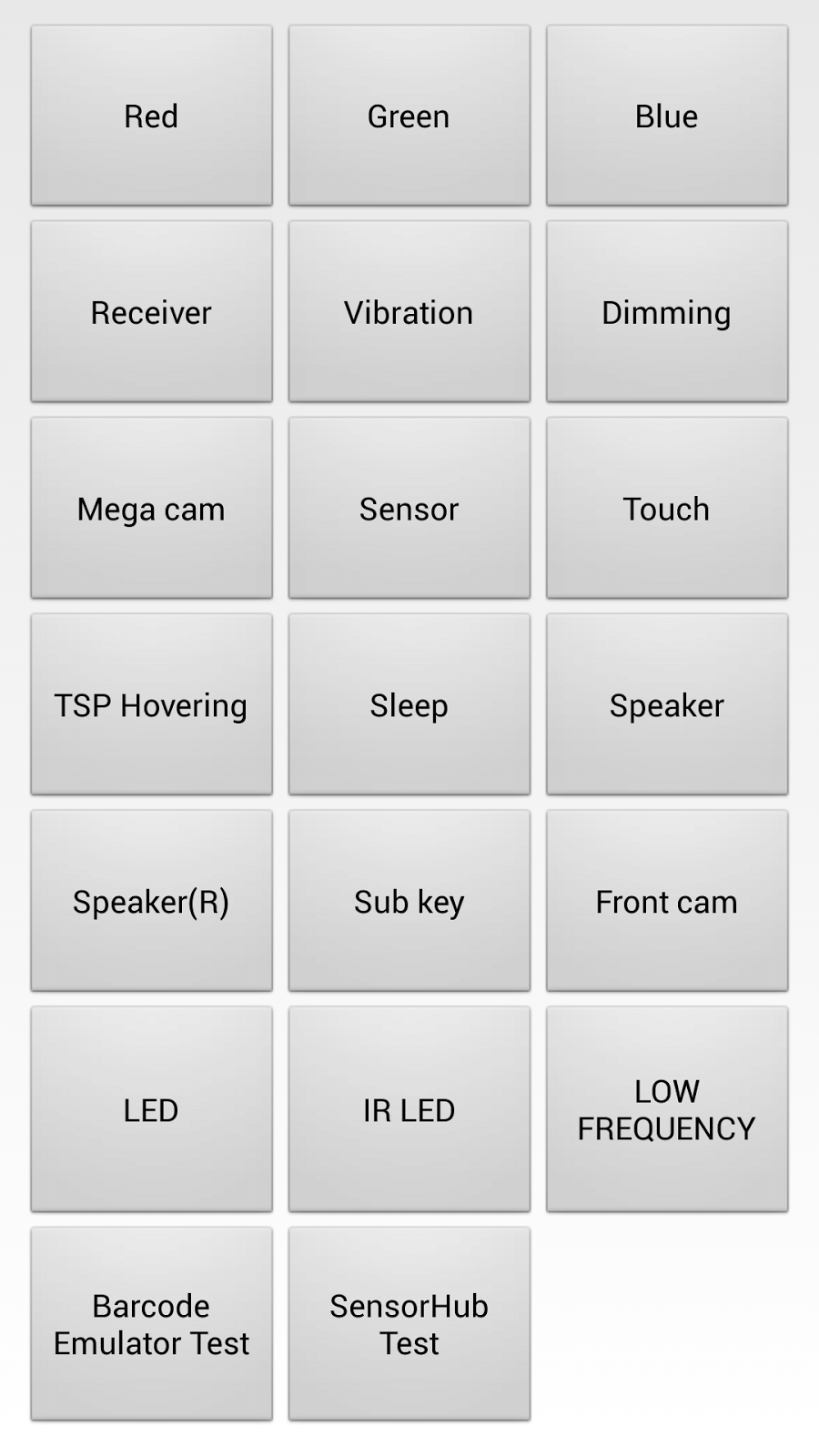
To do a full checkup on your Samsung smart phone , type the code *#0*# in to your phone's dial screen.

A screen will pop up, it contain's all the options to test your smart phone.


 Example screen shot of the Screen.


From this screen you can select where to start your phone's test from, for example , simply click on the tabs "Blue","Red" and "Green" to check your phone's display status. If you can see all the colors  fully on your screen , that means your screen is perfectly fine.
Like the above example , you can keep on checking every component in your smart phone , to make sure that they are full functioning, just go through all the tabs in the screen.


How to Test for Original Android ?

To test for original android , just follow the below steps.

Step 1:- Click on Settings on your phone.

Step 2:- Scroll down to "About Device" and click it

Step 3:- Scroll down to "Android version" and keep on tapping "Android Version".

Step 4:- For jelly bean version, just keep tapping on the Jelly bean image and the jelly bean will start breaking in to smaller jelly beans, so this means it's the original jelly bean version. Currently i don't know what it should display for KitKat version, but ill update this post again in the near future with the information regarding the KitKat version.


Well that's basically it, i hope you managed to test your smart phone without any problem. Next week , ill post a new topic again regarding some more Samsung codes to check for other various options in your smart phone, until then good bye and take-care.


Thank you for reading this post, if you have any questions , please comment it down below.

Have a great day!


Saturday, February 22, 2014

Mechanism to unlock Soft-Bank locked Iphones (Running IOS 7.).

Hello guys,

Its been a lot of days since my last post, i have been really busy with my degree stuff, so am sorry about not updating the blog. From today on-wards, each week ill update the blog with some new stuff.

Today ill be telling you about a mechanism to  unlock a soft bank locked iphone. Soft bank locked iphones are really hard to factory unlock , but there are some shops (rarely) which unlocks them ,still it will cost you more than $150.00.

The unlocking method which i am going to tell is not a factory unlock method, but it works. It doesn't prevent you from updating to the latest IOS like some methods and it doesn't cost you $150.00.


Using a X-sim to Unlock the Iphone. 

X-sims are small sims which you have to insert in to the sim card slot of the locked iphone along with your desired gsm sim. It is a plug and play process meaning, once you insert the x-sim with your gsm sim, the iphone gets unlocked automatically and you are able to use the iphone with your gsm sim.

The x-sim works with the current latest ios , which is ios 7.0.4.
I have personally tried this mechanism on my friend's iphone 4s , which is again a softbank locked iphone and running ios 7.0.4.
It worked straight away without any issue and i didn't even have to jail break the iphone.

X-sims can be purchased through their official site (to go to their official site click here) or
you can simply get it through eBay by searching "x-sim" along with your iphone model. X-sims are pretty cheap to buy, you can get an x-sim for $20, sometimes even less.


This is how a x-sim looks like.


The x-sim supports all the iphones even the iphone 5s and also it can unlock all the versions of ios 7.

So that's the simple mechanism of unlocking a soft bank locked iphone, well there is also the hard way of unlocking a soft bank locked iphone.
Next week ill demonstrate on how to unlock IOS 7 soft-bank locked iphones using jail break and ultra sn0w or redsnow, so until then, good bye and  take-care.

Thank you for reading this post, if you have any questions regarding the x-sim please comment it down below.

Have a great day!


Wednesday, July 31, 2013

Busy Days

Hey guys,

Sorry for not updating the blog recently, am really busy with my university stuff. Anyway i will try my best to update the blog within this week with some new stuff which will be useful. By the way do please check on my newly created blog  http://livemylifeawesome.blogspot.com/,it's about my daily life events.

So yea , be alert on the next update on this blog;).

Have a great day :)

Saturday, January 5, 2013

How to purchase a Steam game Successfully

 Hello,

I have noticed that most of the people are scared to buy games through steam thinking that they might get scammed or some think its a hard process. I have to say that there is nothing to worry about buying steam for your favorite online game.
In this guide, ill guide you to purchase any steam game successfully.

For this guide ill show you how to buy counter strike steam.

So Lets Get Started:-


Step 1- 

Google your game name with steam at the end. For example :- Counter strike steam, by clicking on the first link in the searched results you will be prompted to a new page with game details and prices.(Taken to the official steam site)

You can also go directly to the  steam website and search the store for the game.


Step 2:-

After clicking on your desired game , you will be able to see all the game details and its prices. If you are lucky enough you might get steam offers. (Below is an image of a daily deal offer)


Step 3:-

Once you are satisfied with the prices and the game, click on "add to cart"  and once it is clicked you will be taken in to another new page which will ask you whether you whether want to purchase it to yourself or send it as a gift for a friend.


Step 4:-

Select the option you want whether you want to buy it to your self or friend and click on one option. (In this guide ill be showing how to buy the steam game for your self).


Step 5:-
Once you click on an option you will be redirected to a new page where you will have to create/login to your steam account.
If you don't have a steam account please make sure you click "Join Steam" and register yourself and if you already have a steam account go ahead and sign in.


Step 6:-

These will be the final steps before your purchase the game, you will have to choose a payment method to pay for the game and i mostly prefer if you use "Paypal" rather than using other options. (You are protected from paypal buyer protection just incase)

After selecting Paypal from the drop down menu fill in your details and click "continue"


Step 7 :-

In the next pages you will be asked to confirm that you accept to pay and in the final step you will be asked to login to your paypal account to do the transaction .

Step 8:- 
After the transaction is completed you can go in to your steam application installed on your computer or you can download it by clicking  here.

Step 9 :- 

Once you are signed in to your steam application , they will notify you that you have purchased a steam game and they will start the download automatically. (Some times you will have to click on the game name to start the download).


That's it you now officially own a steam game and i hope this guide helped you.

So enjoy your newly installed steam game and thanks for visiting my blog.

Make sure you also check my other guides.

Have a great day :)


Tuesday, November 13, 2012

How to Install Siri on Iphone 4/3gs Or Ipod touch 4g/3g

Starting from Iphone 4s , Apple included a new voice control called Siri. Unfortunately the Siri wasn't launched for iphone 4, iphone 3gs or ipod touch 4g, 3g as Apple says that it doesn't have the required hardware to run Siri.

This guide will prove you that it's not true what apple has said, once you have installed Siri on your idevice. 
Be-warned i got to know that some people had an issue with the bootup after installing this version of siri, so i managed to find another version of Siri which doesn't have any problems at all.
So if you like to install the other Siri version now itself ,please click here.

So lets get started :- 

Step 1:- 

Make sure you have jail broken your device and you are running any version of IOS 5 (eg:- 5.0 , 5.1.1, etc)
If not you can check my guide on how to jail break any iphone here "Jail Break any iphone".

Step 2:- 

Once you have jail broken your idevice , launch cydia and follow the given steps.

Open Cydia ---> Click manage ---> Sources ---> Edit ---> Add

Now add the following source : "repo.siriport.ru

Step 3:-

Once the adding of new source is completed, open the newly added source and install "Siri port original".

Note :- There will be 2 packages one for Iphone/ Ipod and the other one for ipads.

Step 4:-

After installing Siri port original , close cydia and go to your settings and open the Siriport tab down below, then click "Install certificate".
Once you click "Install certificate" it will take you to a new page , where you will be able to install the certificate from.

Step 5:-

Once the installing of Certificate is completed, reboot your idevice.

Step 6:-

After the reboot follow these given steps to make sure siri is enabled.

Open Settings ---> General ---> Siri

Make sure siri is enabled.

Step 7 :-

Once confirming Siri is enabled, hold down your home button to pop up siri.

That's it congratulations you have sucessfully installed Siri on your idevice. All the commands working on iphone 4s siri or iphone 5 sirs works with this siri as well , basically its the same siri.

Note :- 

Sometimes Siri might not work for the first time or might give errors , but you have to keep talking to Siri, like saying "HI" , "weather", etc.
It might take maximum of 15 - 20 minutes to get siri working.
If not try closing up and opening up siri again. I can guarantee you that once Siri starts working you will be good to go, so don't stop trying.


Thanks for reading my guide.

Have a great day!


Monday, November 12, 2012

How to jailbreak Iphone with Absinthe (untethered)

Many guides on the internet about Absinthe jail breaking aren't clear or not about the untethered version.

This guide will guide you step by step jail breaking instructions  for your iphone 4s , 4 or 3gs.
This jail break is an  untethered jail break for IOS 5.1.1.

Lets get started :-

Step 1 :- 

Before you start make sure that your phone is already running IOS 5.1.1 and please make sure you backup your device just in-case. 

Step 2 :-

Download absinthe from below given links. Make sure you download the correct platform.


Step 3 :-

Now finally before you start check how much of  data is available on your device and how much of resources are available on your pc.  
This type of jail break utilizes a vulnerability in backup and restore process.

Step 4:-

Unzip the download file and launch the Absinthe file on to your PC


Step 5 :-

Make sure that your iphone is connected properly and the phone is  detected , then press the "jail break" button.


Step 6 :-

Absinthe will start to jail break the device.  Please note that more the data you have on your device more the time it takes to jail break.


Step 7 :-

Final stage of the jail break process, the software will tell you to unlock your device and press the jail break icon. 

DON"T DISCONNECT YOUR PHONE YET!


Step 8 :-

When the jail break informs you that it's almost done , you will see the Cydia icon installed on your device. 


Well that's it you have successfully jail broken your Iphone.

All the credits for this guide goes to Absinthe jailbreak. I was doing some research about jail breaking and found out that Absinthe jailbreak provides the best jail breaks.   If you have any problems, questions or need to know other ways to jail break your device, please visit Absinthe jailbreak.

Thank you for reading my guide.

Have a great day!


Sunday, November 11, 2012

Water Damage Indicator Positions in any Apple Iphone

Many people tend to buy used iphones. Some iphones out there for sale are water damaged and people who doesn't know to check for water damage, buy the phone and gets in to trouble after sometime.

So i thought of making a guide , so that people will know how to check for water damage in an iphone without removing the iphone.

Lets get started:-

1:) All the iphones starting from first generation have water damage indicators down the head phone jack.  You will have to use a flash light to check this. When you look at the head phone jack in the phone , you will notice that there is disk inside the headphone jack.
If that disk inside the headphone jack is white, the phone is not water damaged or there has been no moisture. If any moisture or water touches the disk , the disk will turn red which indicates water damaged.


2:) This is the easiest way to check for water damage without using a flash light.  The second water damage indicator is in the dock connector or simply charging port.  The indicator is placed in the middle, below the mid rib. If any water touches the charging dock or phone it simply turns red.


Below images clearly shows where the water damage indicators are placed and how it looks after water damage


Note:-
If the indicator is white , the phone is not water damaged.
If the indicator is red, the phone is water damaged.


These are the 2 methods for checking water damage in any iphone without removing the iphone.  So now when you buy an used apple iphone make sure that you check the water indicators.

Thanks for reading my guide and make sure you read my other guides about iphones.

Have a great day!